
What’s a one-time passcode?
An OTP, or one‑time passcode, is a code that FPL sends to your email to make sure it’s really you logging in. Each code is unique and can only be used one time.
FPL added this step to give your account extra protection. Every time you log in, you’ll get a six‑digit code. This helps stop scammers and keeps your personal information safe.

What’s a passkey?
A passkey is a safe and easy way to log in without using a password. Instead of typing a password, you use something built into your device, like:
- Your fingerprint
- Face recognition
- Your device’s screen lock (PIN or pattern)
Using a passkey is faster because you won’t need to enter a one‑time code when you log in.
Log in securely in just a few steps
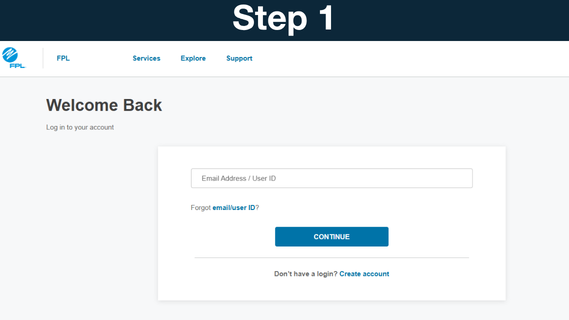
Enter your Email Address or User ID to get started.
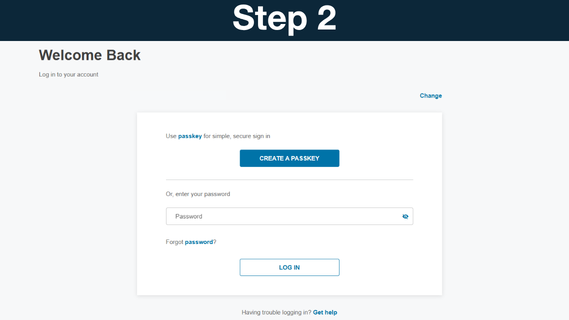
Here you’ll have the option to create a passkey, or enter your password.
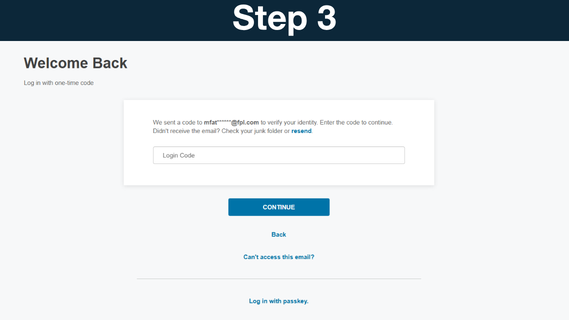
You will receive an email with a six-digit one-time passcode. Enter it here. If you don’t have access to this email address inbox, select “Can’t access this email?”
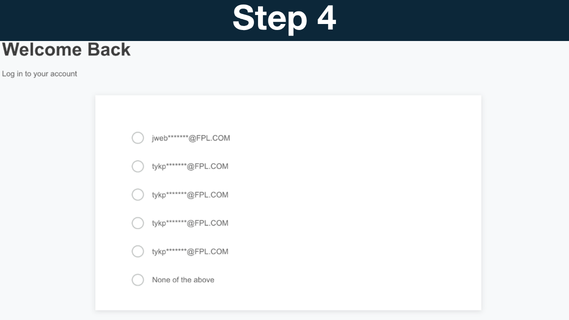
The system will prompt you to select an associated email address to receive the one-time passcode. If you don’t have access to any of the accounts displayed, select “None of the above.”
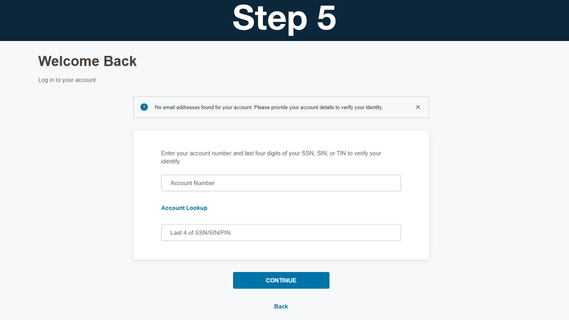
If no email address is selected, you can log in by entering your Account Number and the last four digits of your Social Security Number, TIN, SIN or PIN.
Once logged in, you can update your User ID or email address to an inbox you have access to in your account settings.
Frequently Asked Questions
Your FPL online account has personal information and payment details. We are enhancing the security of your account to better protect you from fraud, identity theft and unauthorized account access. This includes adding multi-factor authentication options, like one-time passcodes and the option to use passkeys.
Multi‑factor authentication is an extra way to protect your FPL account. Instead of using just a password, it asks for more than one step to make sure it’s really you.
When you log in to your FPL account, this can include:
- Something you know, like your password
- Something you have, like a one‑time code sent to your email
- Something personal, like a passkey using your fingerprint or Face ID
Even if someone guesses or steals your password, they still won’t be able to get into your account without that second step. This helps keep your personal information and payments safe.
If your account has a username but no email address, you can still log in. When prompted, you may be able to receive a one‑time code by text if a phone number is linked to your account.
To make logging in easier and more secure, we recommend adding an email address to your account. An email helps you receive login codes, account alerts and important updates from FPL. You can add your email in your account preferences.
If you no longer have access to any email inbox or phone number associated with your profile, you may use your account number and the last four digits of your social security number (or TIN/PIN/SIN) to log in.
If you can’t locate your account number, you can use the online account lookup tool to retrieve your account number:
As a best practice, keep your User ID and account preferences updated with an email address you can access.
Profiles that are primary to an account can also manually invite or add other profiles to access their accounts. This can be managed through shared access and can be found at the bottom of the Account Settings page, under Manage Account Security.
If you don’t see your code after a few minutes:
- Check your spam or junk email folder
- Request a new OTP if needed
- Select “Can't access this email” if you're unable to access the email inbox for your registered profile
The code will only be sent to the email you used to register your FPL account. Make sure the email address on your account is correct.
A passkey is a safe and easy way to log in without using a password. Instead of typing a password, you use something built into your device, like:
- Face recognition
- Your device’s screen lock (PIN or pattern)
- Your fingerprint
Using a passkey is faster because you won’t need to enter a one‑time code when you log in.
To set up a passkey, follow your device’s instructions to create a PIN, password, or enable fingerprint or face recognition. Then, select the option to create a passkey when logging in or updating your account security settings. Follow the prompts and once setup is complete, you will no longer need to use passwords or OTPs.
To create a passkey on your mobile or desktop device, you may need to create a PIN or password first, if you don't already have one. Please refer to your device's operating system for instructions. Many have online support pages with the most accurate and up-to-date steps dedicated to the creation of passkeys for your specific model and operating system.
- For Window: Visit support.microsoft.com for more information.
- For Apple: Visit support.apple.com for more information.
- For Google/Android: Visit support.google.com for more information.
Using a shared profile
Our company uses one shared profile so multiple employees can submit payments. Can we keep using the same profile?
Yes. Multiple employees can continue using the same shared profile by setting up a passkey on their own computer. Each employee completes a one‑time setup so they can securely sign in from their own device.
The first employee should follow these steps on their computer:
- Sign in using the shared User ID and select Set up passkey.
- Enter the account password.
- A screen will ask for a six‑digit code. The code is sent to the email linked to the shared profile.
- If the employee cannot access that email, they can select “Can’t access that email.”
- They may see a list of email options. If none apply, select “None of these.”
- Enter:
- An account number linked to the profile, and
- The last four digits of your Social Security Number (or TIN/SIN/PIN) associated with that account.
- Finish setting up the passkey.
- Once complete, that computer is ready to use the shared profile.
Yes, there is a limit to how many devices can be linked to one User ID for passkey. For example, if you have 20 employees that want to use a shared credential, they can all do so by setting it up on their individual devices. But if one person sets up a passkey on their computer and mobile device, this would count as two passkeys of the 20 allowed for that User ID.
Watching your account
If you think your account was hacked
Searching the internet can sometimes show fake phone numbers that look like they belong to FPL. Scammers can create fake websites or ads that appear at the top of search results. If you call one of those numbers, you could be talking to a scammer instead of FPL. When in doubt, call the number on your bill.