Learn how to set up and use the FPL EVolution app to manage your home charging experience.
What do you need help with?
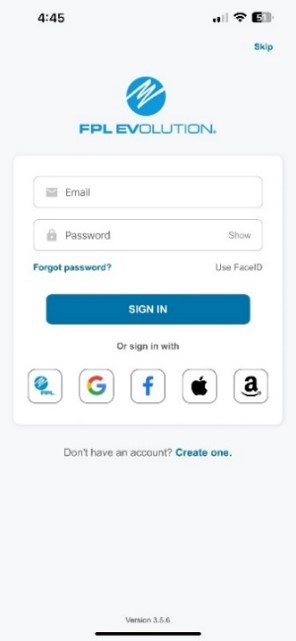
Before using your charger for the first time, you’ll need to log in or create an account, verify your email and add your vehicle. If you already use the FPL EVolution app for public charging, simply sign in with that same account and verify your vehicle information is added.
If you haven’t received your verification email, check your inbox and spam folder for a message from no-reply@verificationemail.com.
You can also choose to sign in using your existing FPL online account, eliminating the need to create a separate username and password. If you’re having trouble signing in with your FPL account:
- Confirm you’re using the correct FPL account credentials.
- Reset your password if needed.
- Make sure you’ve completed any required verification steps.
Remember: Always use the same login method you used when you first connected your charger (for example, your FPL account or your email address). Your charger can only be linked to one account at a time. If you sign in using a different account or login method, your charger won’t appear in the app and you’ll receive an error.
To connect your charger to the app:
- Open the FPL EVolution app and sign in.
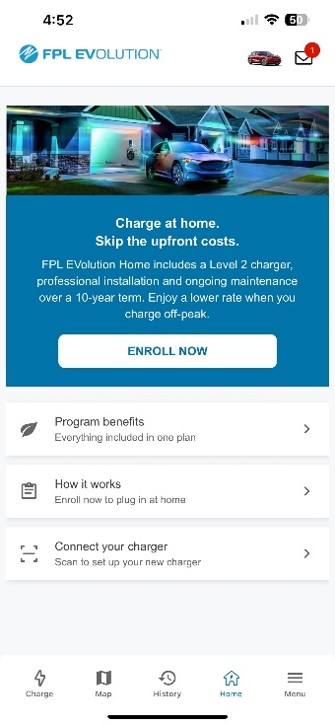
- Select the Home tab, then tap Connect Your Charger.
- Enter your FPL account number when prompted.
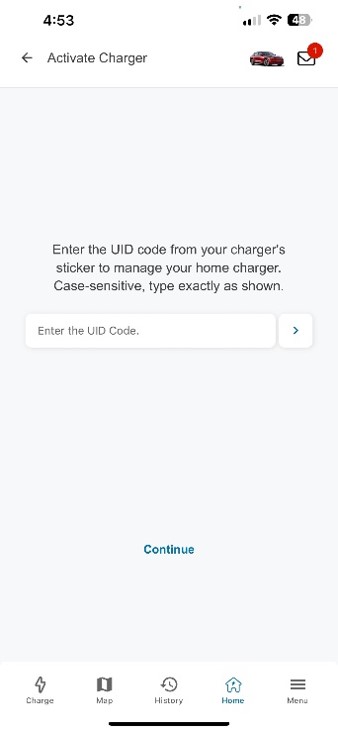
- Scan the QR code located on the side of your charger. If you're unable to scan the QR code, enter the Serial/Charger Number and UID Number found on the side of the charger.
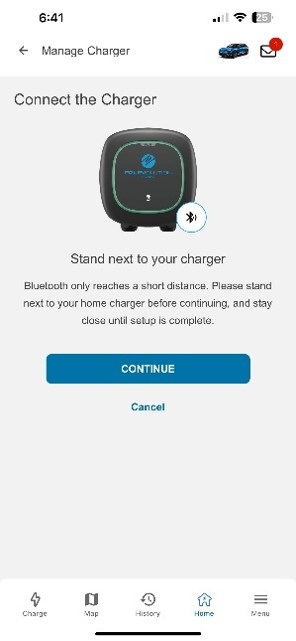
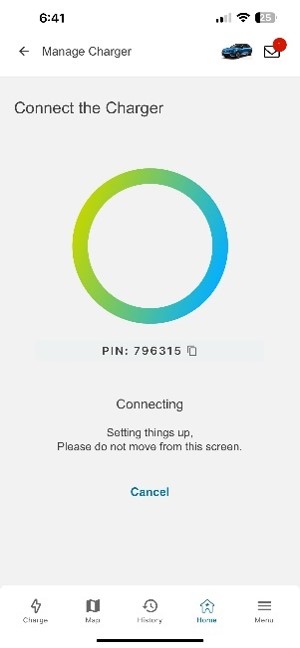
- Select Wi-Fi Setup and, while standing near your charger, follow the prompts to connect to your charger using Bluetooth.
- Select your home’s Wi-Fi network, enter your Wi-Fi password and complete setup.
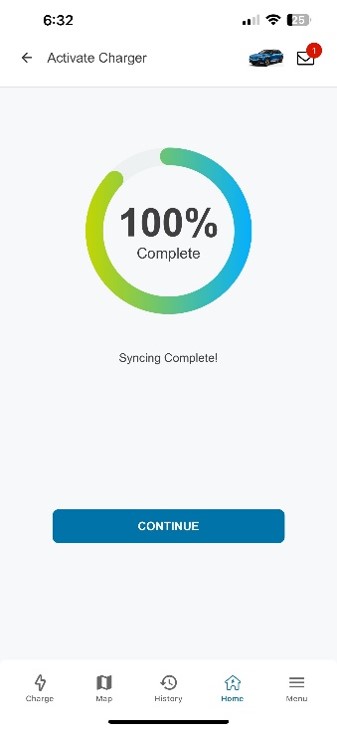
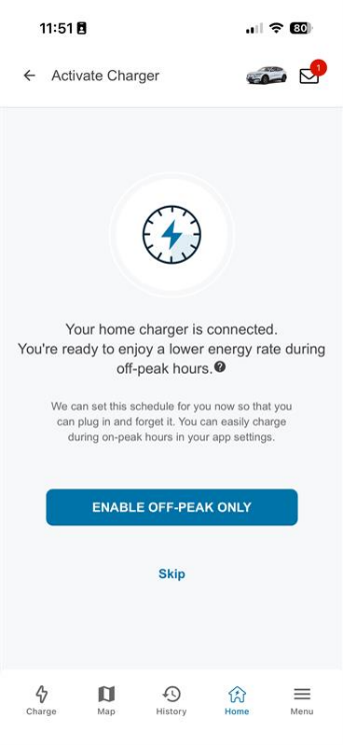
Once setup is complete, your charger will be connected to your account and synced to your home Wi-Fi network. We recommend enabling push notifications during setup so you can receive important charger alerts and updates.
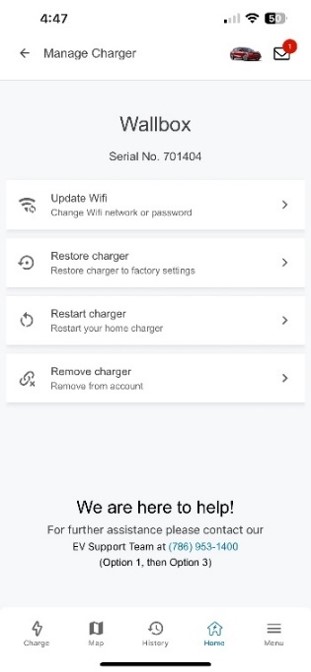
If your charger later becomes disconnected, follow these prompts again in the FPL EVolution app to reconnect it.
If you’re unable to connect or reconnect your charger, contact the FPL EVolution Home Customer Care team at 833-919-0939.
If you’ve forgotten your password or want to create a new one:
- Select Forgot password? from the login screen.
- Enter the email address associated with your account.
- Follow the password reset link sent to your email.
If you haven’t received your verification email, check your inbox and spam folder for a message from no-reply@verificationemail.com.
If you’re still unable to reset your password, contact the FPL EVolution Home Customer Care team at 833-919-0939.
You cannot currently edit the email address associated with an existing FPL EVolution account. To use a different email address, you’ll need to remove your charger, create a new account and reconnect the charger.
- Follow the steps under Removing or reconnecting my charger to remove your charger from the app.
- Create a new FPL EVolution Home account using your new email address.
- Follow the steps under Connecting my charger to reconnect your charger to your new account.
- View your charger’s current status to see whether it’s ready, charging or waiting to charge.
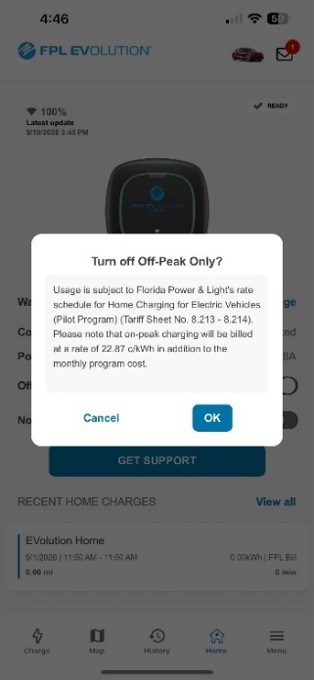
- Override the default off-peak schedule when you need to charge immediately during on-peak hours. Once you’ve finished charging, remember to turn Off-Peak Only back on to continue taking advantage of the reduced energy cost during off-peak hours.
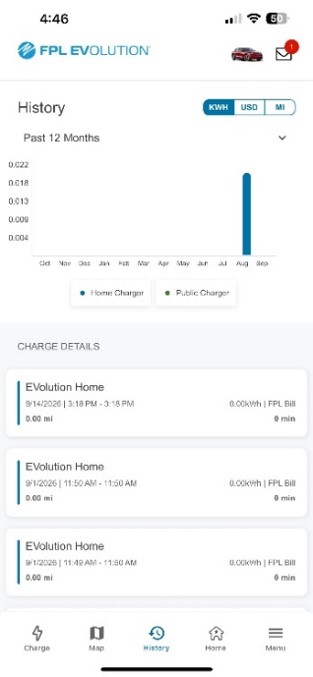
- Review your charging history, including previous charging sessions, charging duration and charger activity over time.
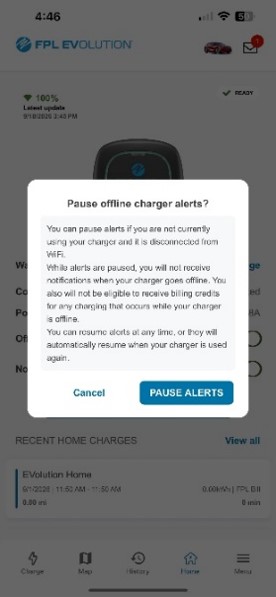
- Pause offline notifications using the Not Using Charger feature if you won’t be charging for an extended period. Offline notifications will automatically resume once charging activity is detected.
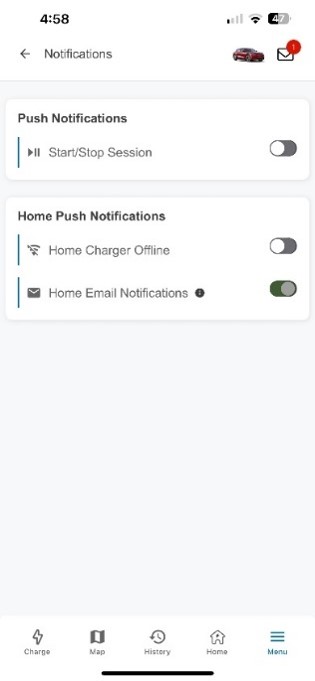
We recommend enabling notifications so you’re alerted when:
- Your charger goes offline, so you can reconnect and ensure accurate billing.
- A charging session starts, stops or completes.
- Your charger experiences an error or fault.
- A software update or other important charger update is available.
To manage your notification preferences:
- Open the Menu tab.
- Select Notifications.
- Turn on the notifications you’d like to receive for your home charger.
Keeping your FPL EVolution app up to date helps ensure you have access to the latest features, performance improvements and bug fixes. To update your app:
- Apple devices: Open the App Store, search for FPL EVolution, then tap Update if available.
- Android devices: Open the Google Play Store, search for FPL EVolution, then tap Update if available.
If you’re unable to update the app, verify your device meets the minimum operating system requirements or contact your device manufacturer for assistance.