As part of participating in the FPL EVolution Home program, you are responsible for maintaining stable internet service and adequate Wi-Fi coverage where the charger is installed. A stable connection is essential for accurate billing information.
For the best charging experience, verify that your home Wi-Fi network meets the following recommendations:
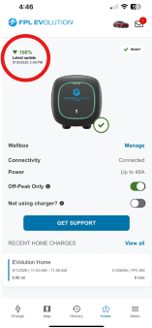
- Signal strength: We recommend a Wi-Fi signal strength of 75% or greater at your charger location. To check your signal strength, open the FPL EVolution app, select the Home tab and look for the Wi-Fi signal indicator in the upper-left corner.
- Wi-Fi network: Connect your charger to a 2.4 GHz Wi-Fi network. The charger is not compatible with 5 GHz or 6 GHz Wi-Fi networks. If you’re unsure which network you’re using, check your router’s Wi-Fi name (SSID) or router app.
- Band Steering/Smart Connect: Some routers use Band Steering or Smart Connect to automatically switch devices between 2.4 GHz and 5 GHz Wi-Fi networks. Disable these features or create a dedicated 2.4 GHz Wi-Fi network for your charger.
- Security settings: Your router should use a supported Wi-Fi security setting (WEP, WPA, WPA2 or CCMP (AES-256) with PSK). These settings are typically available to view and update in your router’s app or configuration page.
- Wi-Fi network name (SSID) and password: For the most reliable setup, use only letters and numbers in your Wi-Fi network name and password. In some cases, special characters (e.g., ! @ # $ % ^ & *) can prevent the charger from connecting successfully.
If you're unsure how to verify or change these settings, contact your internet service provider.
Router placement can also significantly affect your charger's Wi-Fi connection. For the best signal:
- Position your router as close to the charger as possible.
- Minimize walls or other obstacles between the router and charger.
- Position the router in front of the charger, rather than directly behind it, whenever possible.
- If your charger is located far from your router, consider installing a Wi-Fi extender or booster somewhere close to the charger to improve signal strength.
What do you need help with?
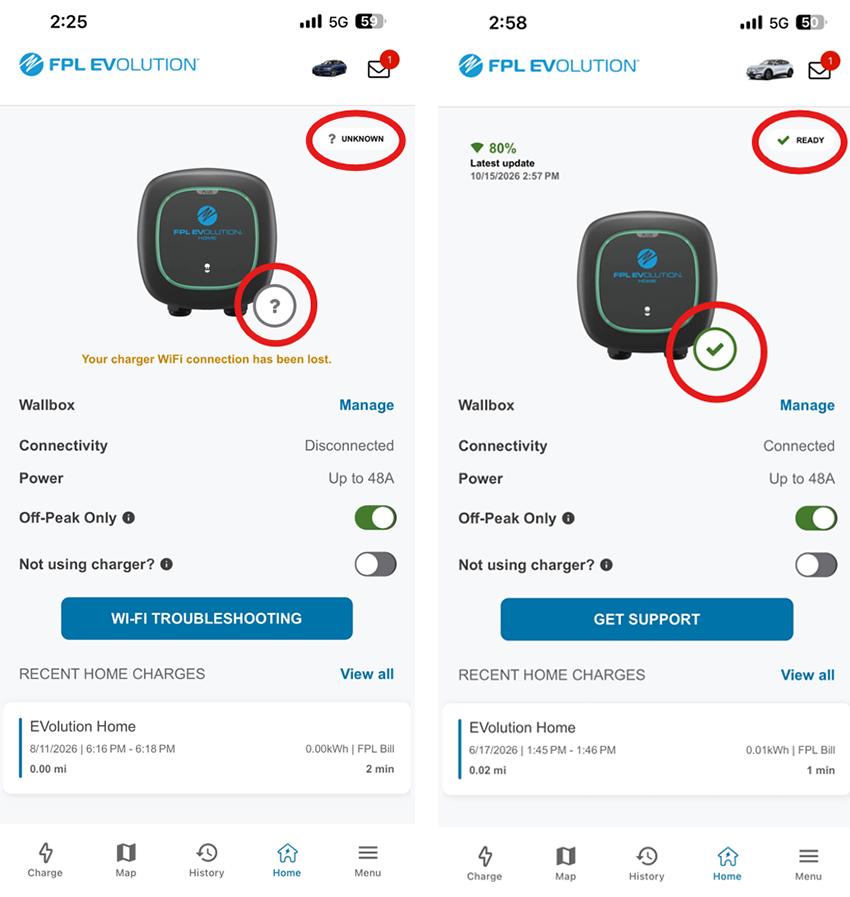
Whether you've changed your Wi-Fi password, purchased a new router or lost your Wi-Fi connection, you can reconnect your charger using the FPL EVolution app.
Remember — for the best charging experience, please ensure your charger maintains a stable Wi-Fi connection. When disconnected, we may not get usage readings needed for accurate billing.
Before you begin, go to Bluetooth settings on your phone. Look for your Wallbox (WB) charger and forget the device. Then:
- Stand near your charger.
- Turn on Bluetooth on your mobile device.
- Sign in to the FPL EVolution app.
- Confirm your charger appears in the app.
To reconnect:
1. Open the Home tab.
2. Select your charger.
3. Open the Connectivity section.
4. Select:
a. Continue to change your Wi-Fi network or password, or
b. Wi-Fi troubleshooting if your charger is offline.
5. Follow the on-screen instructions to reconnect your charger.
If your charger does not appear in the app, first complete Connecting my charger in the FPL EVolution app section.
Your charger depends more on a strong, stable Wi-Fi signal than on high internet speeds for accurate billing. We recommend a signal strength of 75% or greater.
To improve your Wi-Fi signal:
- Move your Wi-Fi router closer to your charger, if possible.
- Reduce walls or other obstacles between the router and charger.
- Position your router in front of the charger whenever possible.
- Consider installing a Wi-Fi booster/extender if your charger is located far from your router.
If your Wi-Fi signal remains weak, contact your internet service provider to improve Wi-Fi coverage where your charger is installed.
If your charger still won’t connect, try these additional troubleshooting steps.
- Restart your charger: Turn off power to the charger at its dedicated circuit breaker for 5 minutes, then restore power and try reconnecting through the FPL EVolution app.
- Test with a mobile hotspot: If your mobile phone and wireless plan support personal hotspots, temporarily connect your charger to your phone’s mobile hotspot. If the charger connects successfully, the issue is likely related to your Wi-Fi network rather than the charger.
- Verify your Wi-Fi network: Your charger must connect to a 2.4 GHz Wi-Fi network. It is not compatible with 5 or 6 GHz Wi-Fi networks or mesh networks. If you’re unsure which network you’re using, check your router’s Wi-Fi name (SSID) or router app.
- Disable Band Steering/Smart Connect: If your router uses Band Steering or Smart Connect to automatically switch devices between 2.4 GHz and 5 GHZ Wi-Fi networks, disable the feature in your router settings or create a dedicated 2.4 GHz Wi-Fi network for your charger. You can usually view these settings in your router’s mobile app or web settings.
- Check your Wi-Fi security settings: Your router should use one of the following supported security settings: WEP, WPA, WPA2 or CCMP (AES-256) with PSK. These settings are typically available in your router’s mobile app or web settings.
If you need help changing your router settings, follow any additional recommended troubleshooting steps in your router’s manual or contact your internet service provider.